The Chat
1. The Chat Window
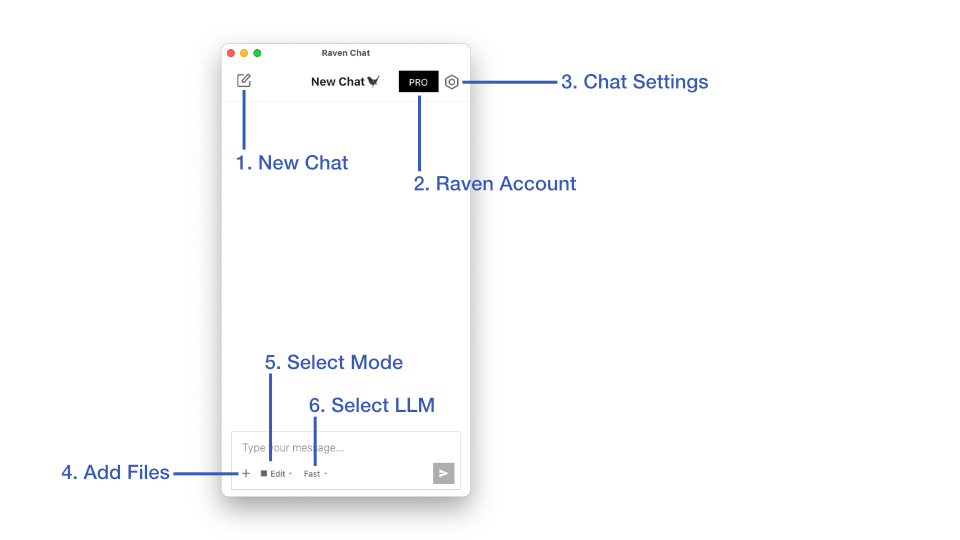
1. New Chat Button: Start a new Chat
2. Raven Account: Login or update your account settings
3. Chat Settings: Here are detailed settings for Raven. They are explained below.
4. Add Files: You can send images and PDFs to Raven, pasting with cmd+V (or ctrl+V) also works!
5. Select Mode: You can select between Ask, Update and Edit mode, which changes the abilities of Raven.
6. Select LLM: Here you can choose betwen fast and smart mode.
2. Chat Settings
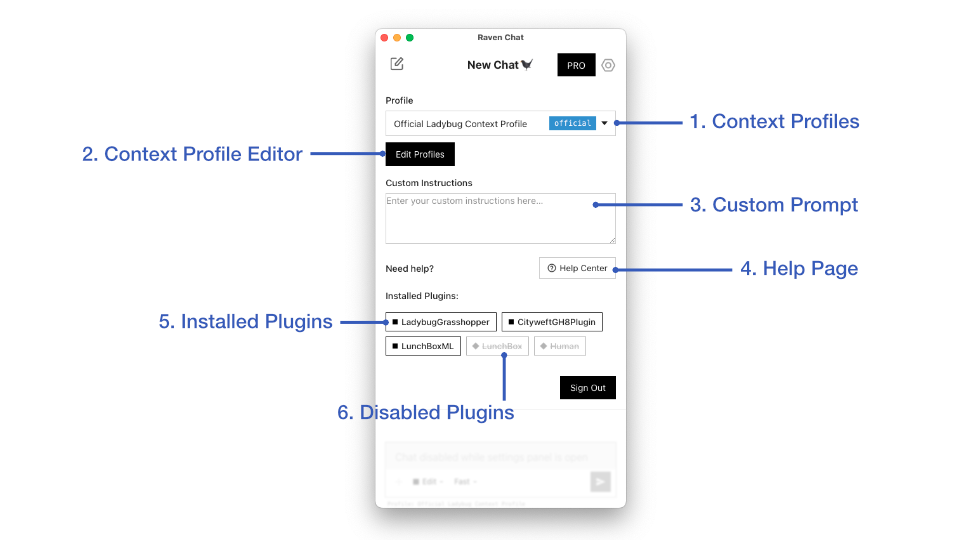
1. Context Profiles: Activate a context profile from the drop-down.
2. Context Profile Editor: This button takes you to the Context Profile Editor page.
3. Custom Prompt: Here you can add custom instructions that will always be attached to the system prompt. For example you can specify a language that Raven should reply in, or certain guidelines/rules that you want Raven to follow.
4. Help Page: You probably know what this button does already!
5. Installed Plugins: You can see all your installed GH-Plugins here. Click on them to disable them.
6. Disabled Plugins: Disabled plugins are displayed like this.